

By default, Shopify Customer Accounts (the current passwordless system) returns customers to the page they were on when they clicked sign-in, while Legacy Customer Accounts drops them on the order history page. Both are sensible defaults, but sometimes you want to send customers somewhere else entirely: a wholesale catalogue for B2B customers, a profile form for first-time sign-ins, a gated collection for VIPs, or a custom welcome page for returning shoppers. Setting up a custom redirect lets you control exactly where customers go after signing in.
This guide covers how to set up post-login redirects on both account systems. Customer Accounts (the passwordless, default version since 2026) and Legacy Customer Accounts (the older, password-based version still used by many stores). The implementation differs significantly between the two, so regardless of the Shopify accounts version you’re on, Froonze has you covered!
Which version of customer accounts are you using?
Shopify has two parallel account systems, and the redirect method depends on which one your store uses:
Customer Accounts is the current, passwordless system. Customers sign in with a 6-digit code sent to their email, and the sign-in pages are hosted on a Shopify-controlled domain rather than in your theme files. This is the default for all new stores and the only option going forward. Shopify deprecated Legacy Customer Accounts in February 2026.
Legacy Customer Accounts (also called Classic Customer Accounts) is the older password-based system. The login and registration forms live inside your theme as Liquid templates, which means redirects are configured directly in those templates.
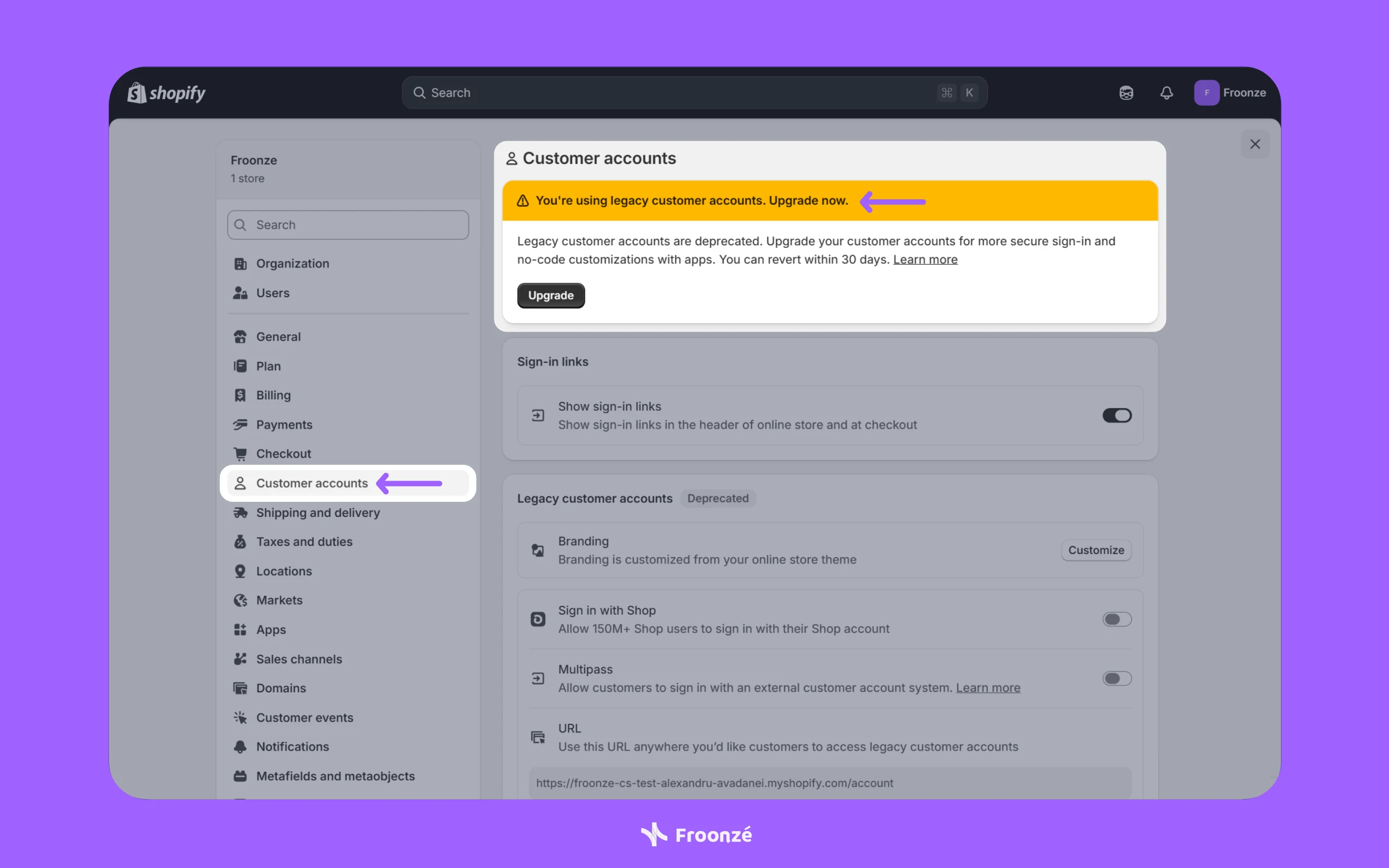
To check which system your store uses, go to Settings → Customer accounts in your Shopify admin. The active version will be shown there.
Redirecting customers in Shopify Customer Accounts
Because the sign-in page for Customer Accounts isn't in your theme, you can't edit a form directly. Instead, the redirect is set on the link that sends customers to the sign-in page by appending a return_to parameter to the URL.
The base authentication path is /customer_authentication/login, and you append a relative path of where you want the customer to land after they sign in.
Use case 1: Redirect to any page
This is the simplest scenario, sending all customers to a specific page after signing in: a homepage, a flagship collection, a welcome section, a wholesale portal, or anything else.
The link looks like this:
<a href="/customer_authentication/login?return_to={{ '/collections/all' | url_encode }}">Sign in</a>
To apply this site-wide, find your theme's sign-in link in the theme code files, usually in header.liquid or a header snippet, and replace whatever's there. You'll typically see one of these:
<a href="{{ routes.account_login_url }}"><a href="{{ routes.account_url }}"><a href="{{ routes.storefront_login_url }}"><a href="/customer_authentication/login">
Replace the href value with the return_to version above. Save and test by clicking the sign-in link from any page on your store.
If your theme uses the <shopify-account> component
Some modern themes (including Horizon and any theme submitted to the Theme Store from 2026 onward) use the <shopify-account> web component instead of a standard sign-in anchor. Instead of a link in the header, you'll see something like:
<shopify-account menu="customer-account-menu">...</shopify-account>
For these themes, the redirect is set via the sign-in-url attribute on the component itself:
<shopify-account menu="customer-account-main-menu" sign-in-url="/customer_authentication/login?return_to=/collections/all">...</shopify-account>
However, Email (OTP) and social sign-in (Google, Facebook) handle return_to correctly, so the redirect will work as expected.
Use case 2: Redirect to the previous page
Shopify offers a built-in way to do this with the routes.storefront_login_url. It automatically returns customers to the page they were on when they clicked sign-in:
<a href="{{ routes.storefront_login_url }}">Sign in</a>
One thing to be aware of: if you replace the default sign-in link with this, customers who are already signed in won't have an obvious way to reach their account page. You can handle this with conditional logic that shows different links based on sign-in state:
{% if customer %}
  <a href="{{ routes.account_url }}">Account</a>
{% else %}
  <a href="{{ routes.storefront_login_url }}">Sign in</a>
{% endif %}
This is what many modern themes do by default. If your theme doesn't, adding this snippet to your header solves the problem.
Use case 3: Redirect to a profile-enrichment page
Customer Accounts has a side effect that catches a lot of merchants off guard: because sign-in only requires an email, the customer record created on first sign-in contains nothing else. No first name. No last name. No marketing preferences. Nothing.
For most stores, this is a real problem. Personalized email campaigns need a first name. Shipping needs an address. Segmentation needs something to segment on.
The cleanest fix is to redirect first-time customers to a page with a form embedded, so they can fill in the missing details right after they sign in:
<a href="/customer_authentication/login?return_to={{ "/pages/profile-setup" }}">Sign in</a>
Then, on /pages/profile-setup, you embed a form that captures whatever data you actually need.
That’s needed because Shopify's native registration form is gone in Customer Accounts. There's no built-in way to add custom fields to the sign-in flow. To collect this data, you need a forms app, like Froonze Forms, which lets you build forms with custom fields and embed them on any page. The app connects submissions to the customer record automatically.
If you want to redirect customers after they submit a Froonze form
To send customers somewhere specific once they submit the form, back to their account page, a thank-you page, or anywhere else, you'll need to add a small script below the form embed in the page's HTML editor:
<script>
  document.addEventListener('frcp.customForms.formSubmitted', function() {
    window.location.href = '/pages/thank-you';
   });
</script>
Replace /pages/thank-you with the page you want customers to land on.
This setup also pairs with the next use case, since you'll want returning customers (who've already filled out the form) to skip this page.
Use case 4: Conditional redirect based on customer tags
This is where Shopify's native customer accounts hit a wall, and it's worth being honest about why.
You might want different customers to land in different places: wholesale customers go to a B2B catalogue, VIP customers go to a gated collection, regular customers go to the homepage, and customers who haven't completed their profile go to the form page. Logical. Reasonable. Not natively supported.
The reason: at the moment a customer clicks the sign-in link, they're not signed in yet, so Shopify has no idea who they are. The customer object in Liquid is null. You can't write {% if customer.tags contains 'wholesale' %} on the sign-in link itself, the condition is always false because the customer doesn't exist yet.
The workaround is a redirect-relay page: send everyone to a single hidden page after sign-in (e.g., /pages/router), and on that page run Liquid logic that checks the now-populated customer.tags and redirects accordingly with JavaScript. It works, but customers may see a brief flash of the relay page before being redirected.
To do that, add a new file page.router.liquid under the templates directory in the theme code files. Add your conditional routing to the file. Here’s an example:
{% if customer %}
  {% assign customer_tags = customer.tags | join: ',' | downcase %}
  {% if customer_tags contains "wholesale" %}
    <script>
      window.location.href = "/pages/wholesale-dashboard";
    </script>
  {% elsif customer_tags contains "vip" %}
    <script>
      window.location.href = "/pages/vip-dashboard";
    </script>
  {% else %}
    <script>
      window.location.href = "{{ routes.account_url }}";
    </script>
  {% endif %}
{% endif %}
You can simply replace the /pages/wholesale-dashboard and /pages/vip-dashboard with your desired locations. Furthermore, you can duplicate and modify the {% elseif ... %} conditional as many times as you need to accommodate more tags.
Redirecting customers in Shopify Legacy Customer Accounts
If your store still runs on Legacy Customer Accounts, the redirect method is different because the sign-in and registration forms live inside your theme files, where you can edit them directly.
The mechanism: add a hidden return_to input tag inside the form. When the customer submits the form, Shopify reads that value and redirects them accordingly.
How to set it up
- Go to Online Store → Themes. Find the theme you want to edit and click on the Three points icon → Edit code.
- In the templates folder, find the login template (usually login.liquid or main-login.liquid).
- Locate the line {% form 'customer_login' %}.
- Directly below it, add this hidden input:
<input name="return_to" type="hidden" value="/collections/all">Replace /collections/all with the page you want customers to land on after signing in.
- Repeat the same steps for the registration template (register.liquid or main-register.liquid), placing the input below the {% form 'create_customer' %} line.
Redirect to the previous page (legacy)
If you want to send legacy customers back to the page they came from, use a small JavaScript snippet that captures the previous URL via document.referrer:
<input id="return_to" name="return_to" type="hidden" value="">
<script>
  document.addEventListener('DOMContentLoaded', function() {
    document.querySelector('#return_to').value = document.referrer;
  }, false);
</script>
Place this inside both the login and registration forms.
A no-code option for legacy stores
If you're not comfortable editing theme code, or you want post-registration redirects combined with custom registration fields, Froonze Forms lets you create custom registration forms that collect additional customer information, with the option to set up redirects to specific pages after registration.
A note on Legacy Customer Accounts deprecation
Shopify deprecated Legacy Customer Accounts in February 2026. Stores still using legacy accounts can continue to do so for now, but Shopify is gradually phasing them out, and new stores can't enable them at all.
If you're on legacy and weighing whether to migrate, the redirect setup you build today on Customer Accounts will outlive any setup you build on legacy. That doesn't mean you have to rush, but it's worth factoring it into the decision.
Bringing it all together with Froonze
Post-login redirects are one piece of a larger problem: turning the moment a customer signs in into a useful, on-brand experience.
A redirect on its own is just a destination change. What makes it worth doing is what's at the destination. Froonze Account replaces Shopify's default account page with a fully customizable customer dashboard, embedded directly in your storefront. From there, you can layer in:
- A profile form that captures the data Shopify's passwordless flow doesn't, so you actually know who your customers are (Froonze Forms).
- A loyalty program that gives returning customers a reason to sign in in the first place: points balance, tier status, redeemable rewards (Froonze Loyalty).
- A wishlist that persists across sessions and devices, so the things customers were considering last time are still there when they come back (Froonze Wishlist).
A redirect that sends a customer to a dashboard showing their points balance, their wishlist, and their profile is a fundamentally different experience from the default. Whether that default is the order history page or the page they happened to be browsing. The redirect is the mechanism; the destination is what actually changes the customer's experience. And Froonze can help you take it beyond a simple redirect, all while ensuring that you keep customers close!