

In-store checkout is unlike its online counterpart. It’s more human to a certain extent, and hence, more prone to error.
A familiar narrative comes to mind. Customers having to repeat their email addresses, or a misspelled letter, is all it takes to create frustration. Add to that the way customers feel when they find out that their loyalty points are nowhere to be found.
We’ve developed the Froonze Loyalty & Wishlist digital cards functionality to mitigate this risk. It’s specifically designed for Shopify merchants who sell through Shopify POS.
How loyalty digital cards work
Digital cards are mobile digital passes created through our app and saved in a digital wallet, such as Apple Wallet or Google Wallet. In-store customers can scan them during Shopify POS checkout, saving time and ensuring a smoother experience.
General mechanism of loyalty digital cards
The mechanism behind loyalty digital cards is quite simple. Shopify merchants can design the card appearance and enable the feature from our app dashboard. Store customers can simply generate their card on demand at multiple touchpoints across the storefront and the customer portal.
Shopify POS logic for loyalty digital cards
In-store customers can just scan their QR code during the POS checkout process. This will add the customer to the current cart. Furthermore, it’s possible to rescan a different customer’s QR code on the same cart.
Digital cards are entirely compatible with our existing loyalty features. So, no more asking for email addresses. A scan is all it takes for points to be offered and rewards to be redeemed.
The main benefit of loyalty digital cards
Simply put, customers want more convenience and freedom when buying. And while digital wallets alone are worth the hype during POS checkout. If you add loyalty to that, you’ve got a killer combo: convenience, freedom, and gratification—the epitome of proper customer engagement.
How to set up loyalty digital cards
The setup process for our app’s loyalty digital cards is straightforward. Moving forward, you’ll learn how to access, design, and activate the loyalty digital cards. Furthermore, you’ll get an understanding of what your customers experience once this functionality is live!
Step 1: Access the loyalty digital cards page
- Log in to the store’s Shopify admin and access our app.
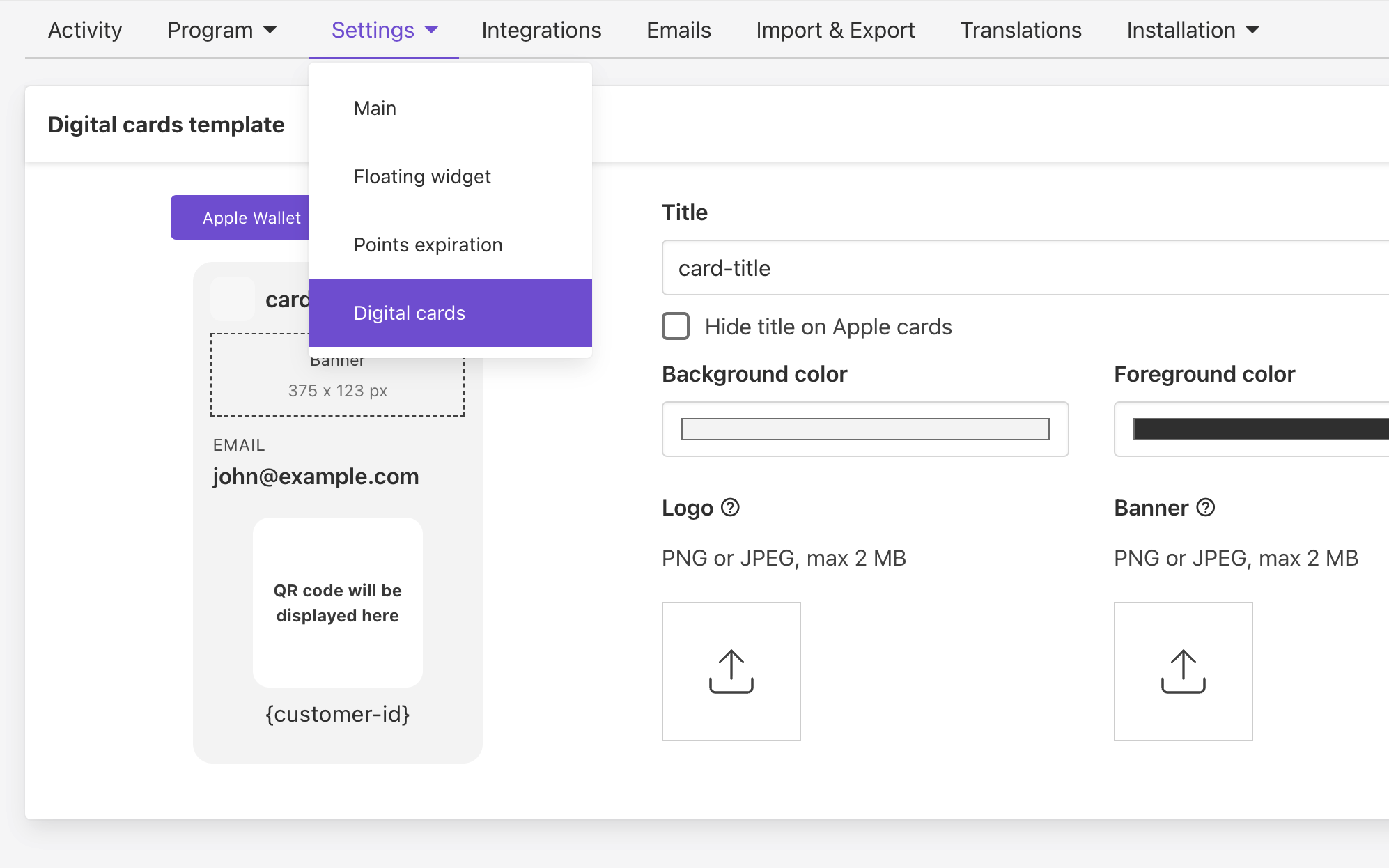
- Navigate to our app’s Loyalty ➜ Settings ➜ Digital cards to access the dedicated dashboard.
This page contains all the configuration options: design, activation, and platform support.
Step 2: Design the loyalty digital card template
Before activating the feature, it’s necessary to design the template for the digital cards:
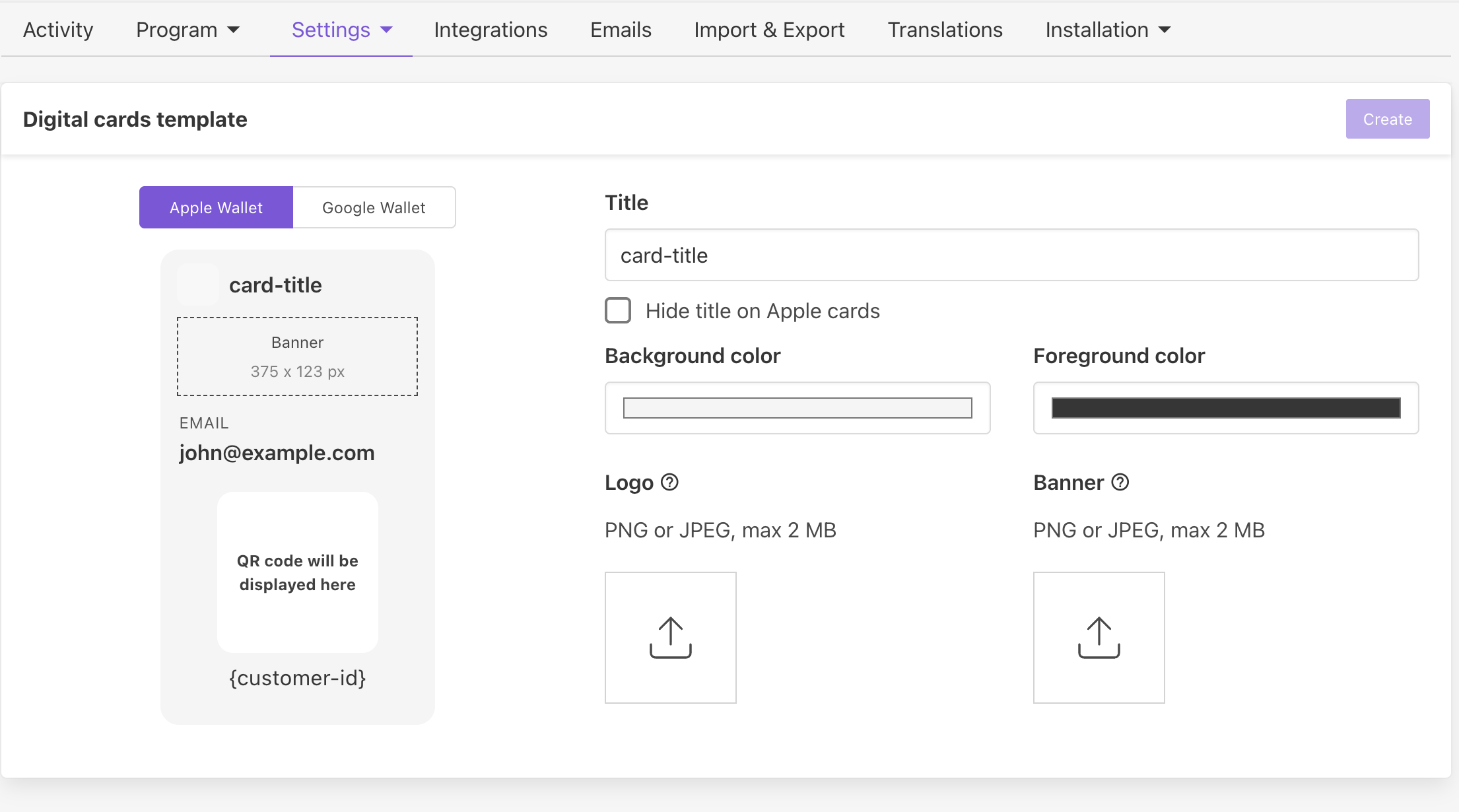
- The left side of the page displays the supported platforms and a real-time preview of the loyalty card design.
- Supported platforms
We currently support Apple Wallet (for iOS) and Google Wallet (for Android). - Design preview
Any modifications made to the design will be reflected in real time.
- Supported platforms
- The right side of the page offers 5 customisation options that allow designing the loyalty digital card:
- Card title
Displayed on the card with an option to hide it on Apple Wallet. - Background color
Defines the main color of the digital card. - Foreground color
Controls the text and icon color to ensure readability. - Logo image
Allows uploading a PNG or JPEG file capped at a maximum of 2 MB. - Banner image
Allows uploading a PNG or JPEG file capped at a maximum of 2 MB.
- Card title
- Hit the “Create” button to complete the loyalty digital card design.
Step 3: Activate the loyalty digital cards feature
Once the design is completed, the feature must be activated before customers can benefit from it.
- Navigate to our app’s Loyalty ➜ Settings ➜ Digital cards to activate the feature.
- Toggle on the activation switch at the top right.
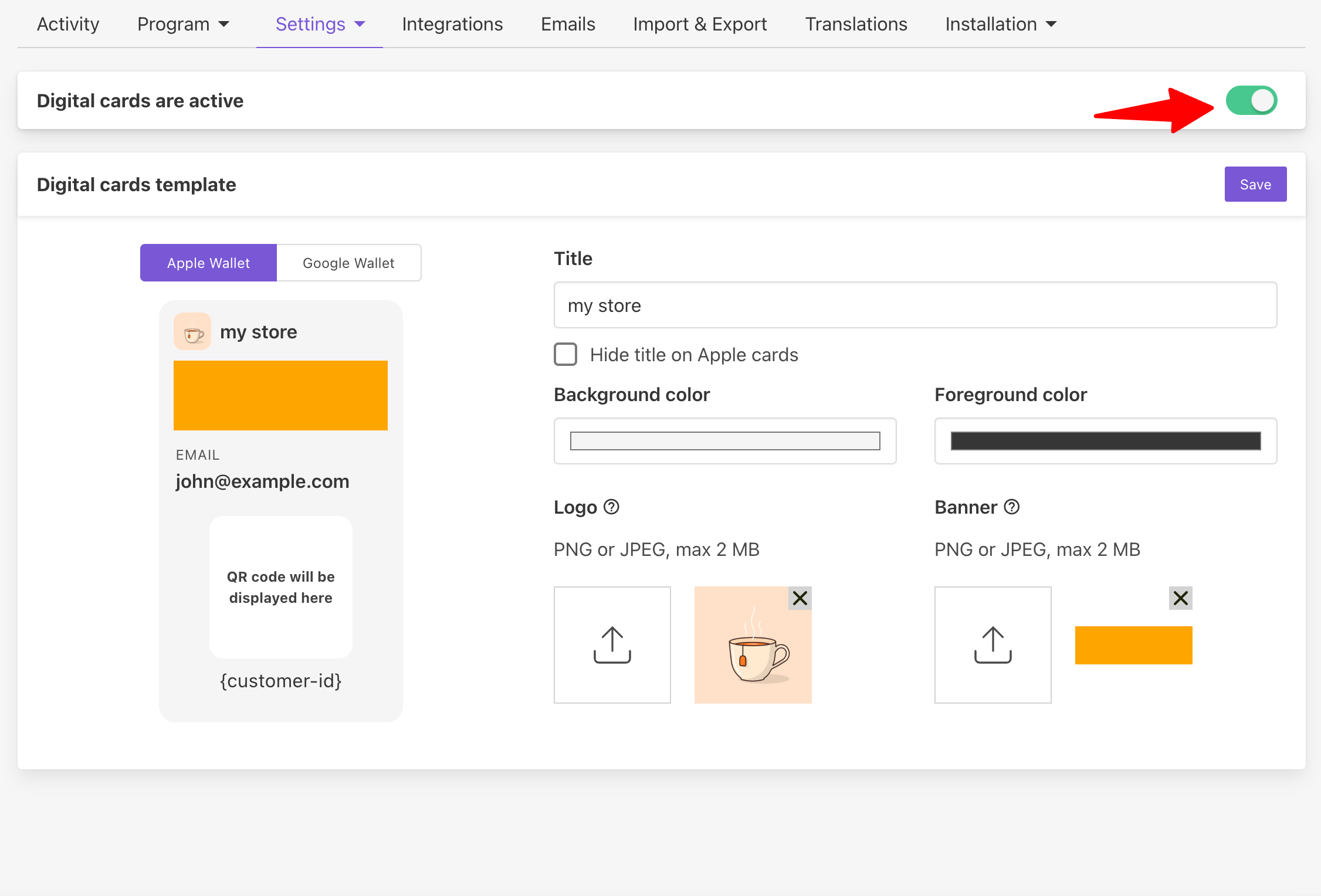
- Customers can now request and download their loyalty digital card.
Step 4: Scan the loyalty digital card code
Once the feature is enabled, and customers download their digital card to their preferred mobile wallet, merchants can simply scan the QR code during POS checkout by accessing our Froonze POS tile.
This is a faster, error-free way of identifying customers, while also enabling staff members to check point balances and redeem points or apply loyalty discounts.
What customers experience with digital loyalty cards
Store customers can create and download their loyalty digital cards by clicking one of the available options, depending on the preferred platform:
- Add to Apple Wallet
Specifically for iOS users. - Add to Google Wallet
Specifically for Android users.
Furthermore, store customers have 3 available widgets from which they can create and view the loyalty digital cards:
- Our loyalty extension
Available inside Shopify’s New Customer Account page.
Works only with Shopify New Customer Accounts. - Our loyalty tab
Available inside Froonze’s Customer Account widget.
Works with Shopify Legacy Accounts and New Customer Accounts. - Our floating widget
Available on every page of a Shopify store.
Works with Shopify Legacy Accounts and New Customer Accounts.
Loyalty extension in the Shopify New Account page
Customers can add their loyalty digital cards to a preferred platform by accessing the Account ➜ Loyalty extension (may be named differently) ➜ Wallet ➜ Digital cards.
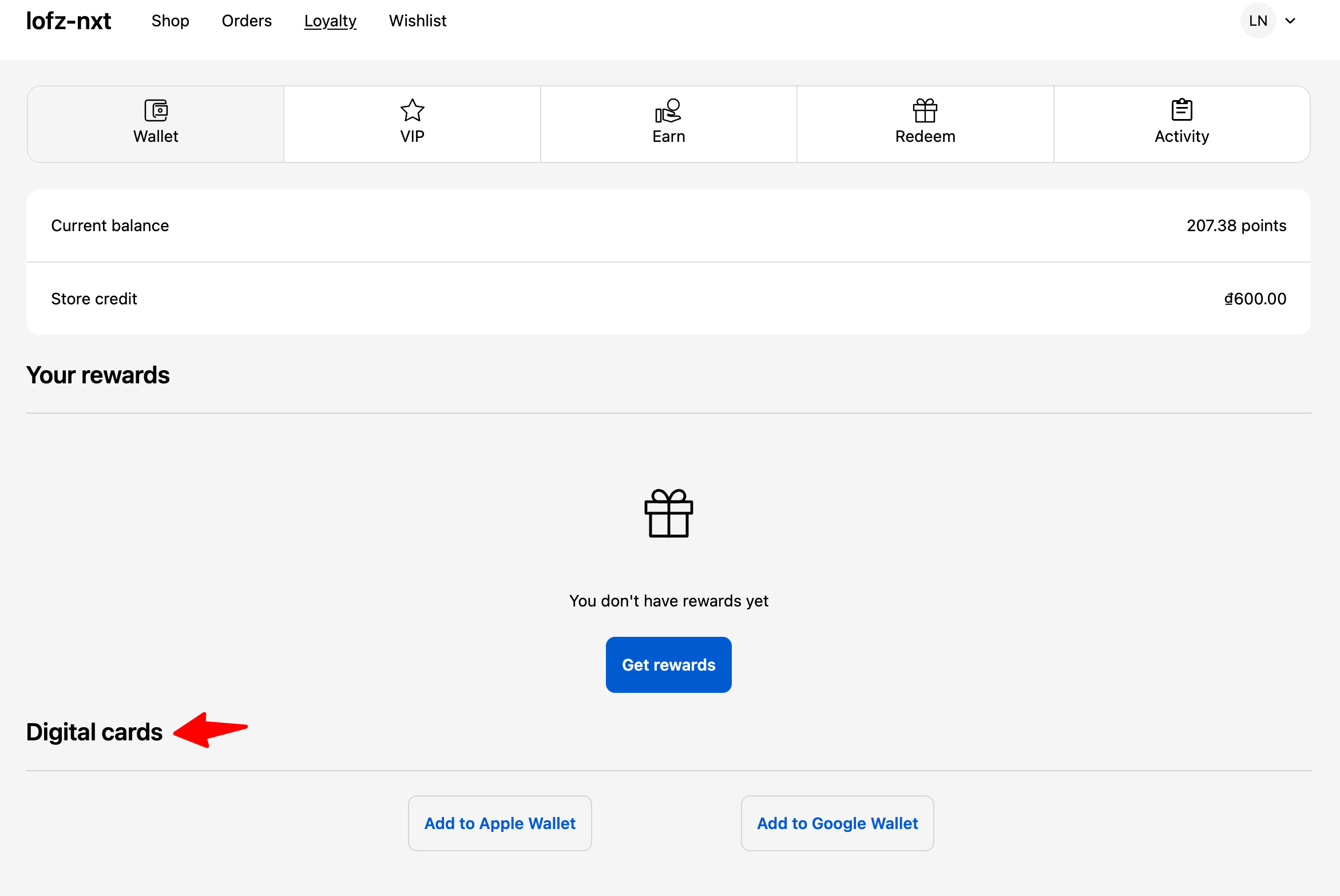
This is possible only if the store uses Shopify New Customer Accounts. Furthermore, our app’s loyalty extension must be enabled on the new customer account default page.
Loyalty tab in our Customer Account widget
Customers can also access their loyalty digital cards from our app’s Customer Account widget. This can be done by navigating to the Account ➜ Loyalty tab (may be named differently) ➜ Wallet ➜ Digital cards.

This is possible only if the merchant has subscribed to and activated the Customer Account widget plugin.
Loyalty floating widget on every store page
Lastly, customers can access their loyalty digital cards from our app’s loyalty floating widget. This can be done by navigating to any page on your storefront ➜ Rewards floating button (may be named differently) ➜ Wallet ➜ Digital cards.
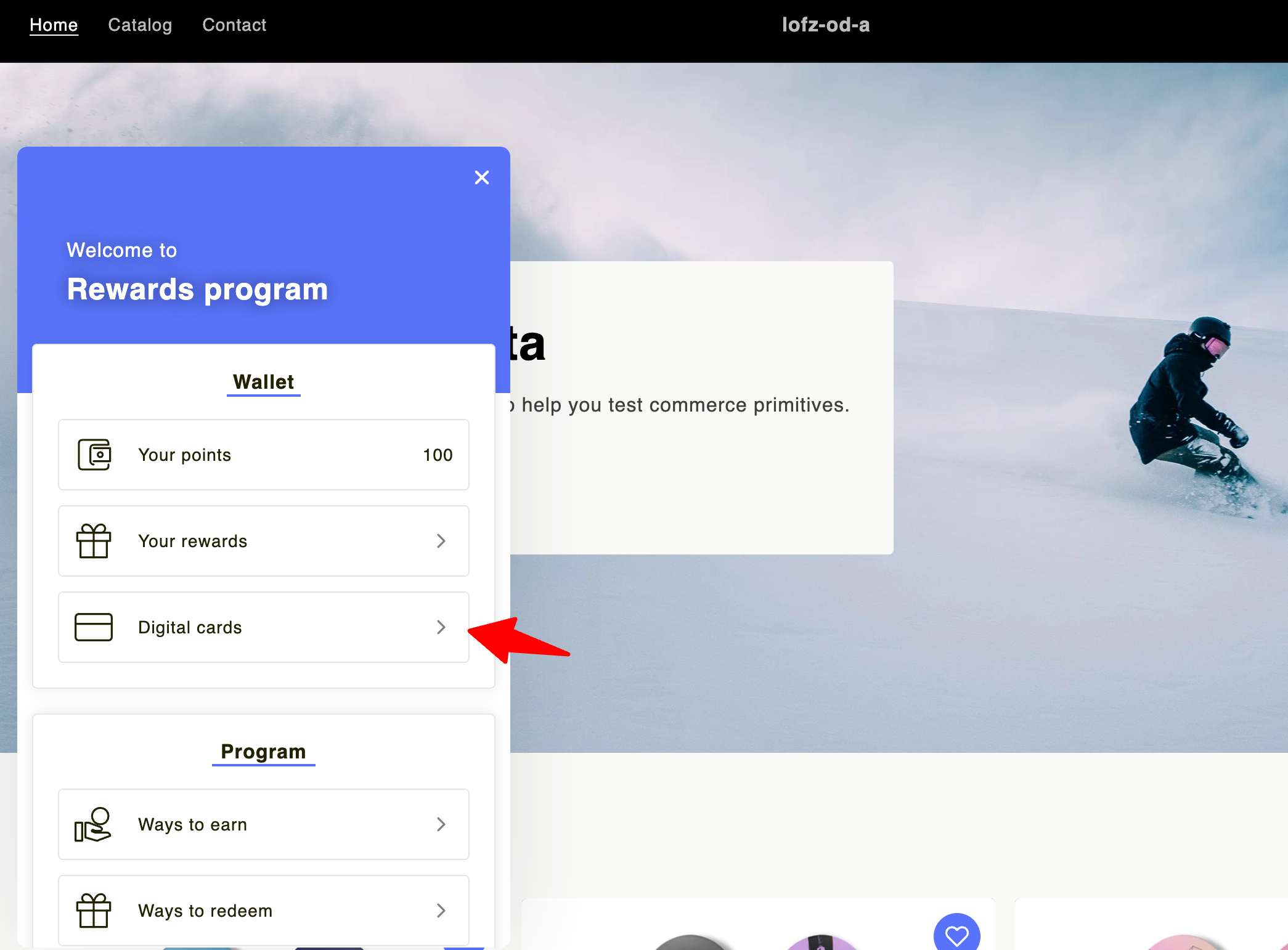
This is possible only if the merchant has enabled the loyalty floating widget.
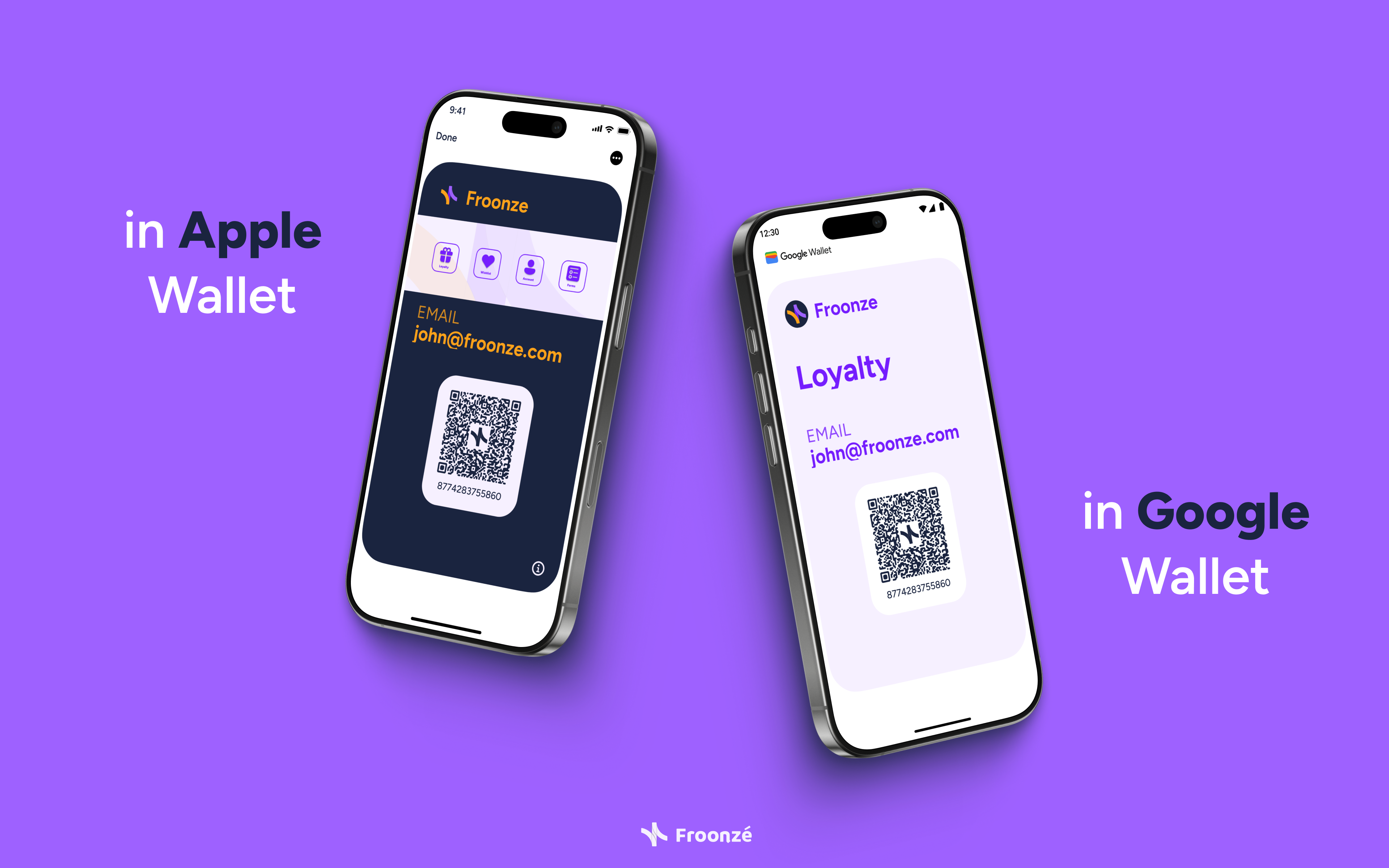
How do the loyalty digital cards look to customers?
After customers download their loyalty digital cards, they'll see it exactly how you designed it. You can check out the screenshot below to get an idea.
Ready to offer loyalty digital cards with Froonze?
There’s no doubt that Shopify loyalty cards delivered in a digital format and saved in Apple Wallet or Google Wallet are no longer a nice-to-have, but a necessity.
How about you give our Froonze Loyalty & Wishlist app a try if you haven’t already? If it’s your first time installing the app, you’ll benefit from a 14-day free trial! Not yet ready for the full commitment? Just create a Shopify development store and try it there for free!