





The Shopify App Store offers over ten thousand apps. Some are a must-have if you want customers to get that “wow” experience they deserve; others are meant for the skip button.
Regardless of the Shopify apps you need, most offer a trial period, but here’s the rub. It’s called a trial period, which means it’ll eventually end. So, wouldn’t it be great if you could test your favourite apps before fully committing to them?
It’s entirely possible by creating a Shopify development store! The caveat is that it won’t work with some apps. That’s because they aren’t free or partner-approved. Worry not, because Shopify offers a comprehensive list of partner-friendly apps you can take for a test drive in the development store you’re about to create.
So, let’s delve into the requirements, creation process, features, and limitations of Shopify development stores!
Step 1: Sign up for a free Shopify Partner account
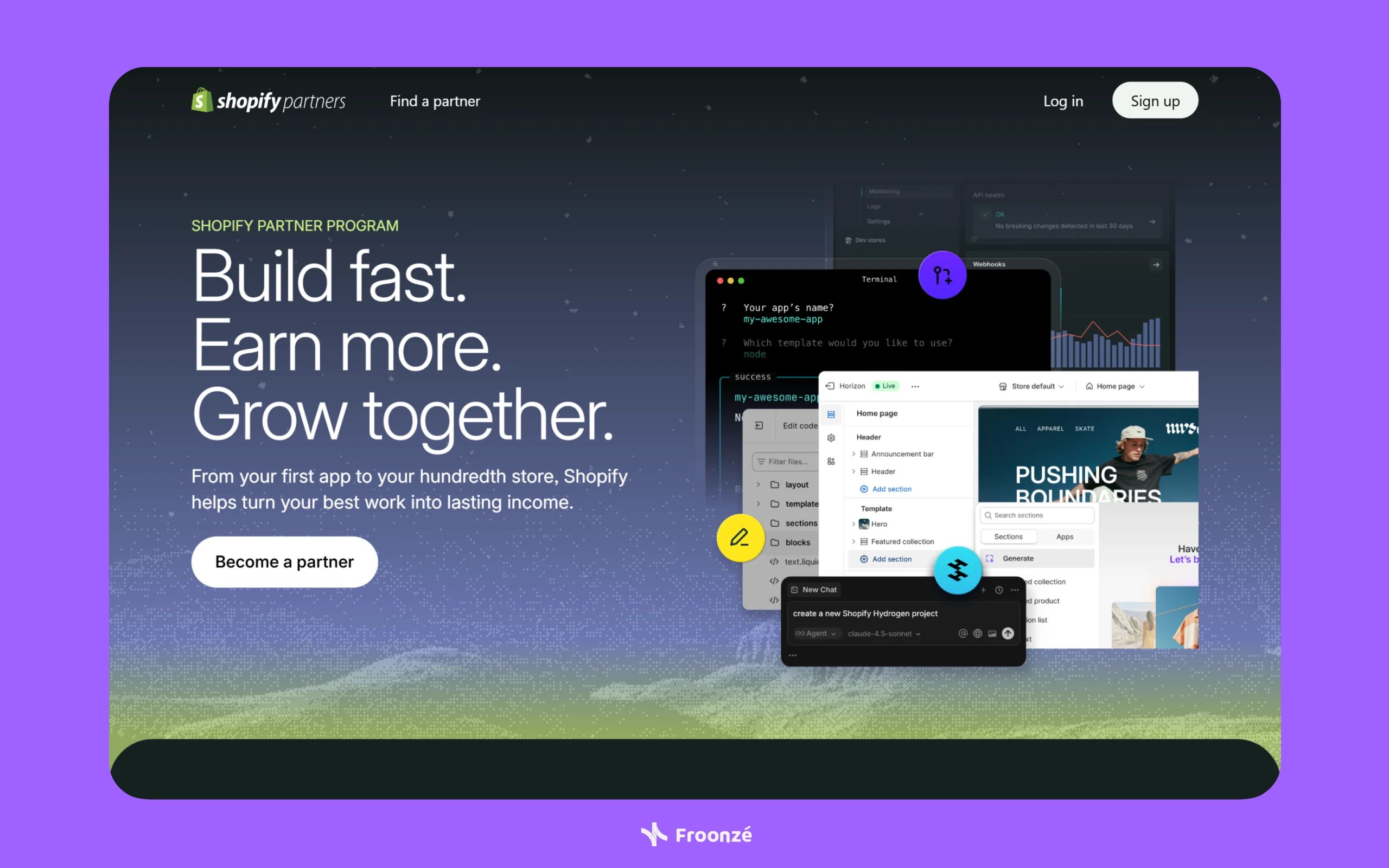
First and foremost, creating a development store on Shopify requires joining the Shopify Partner Program. You can join by creating a partner account on Shopify's designated page. You’ll need to fill in details such as your full name and email address. Shopify also offers the option to sign up using a social login provider (i.e. Apple, Google, or Facebook). It’s that easy, so there’s no excuse not to sign up for a Shopify Partner account.
Step 2: Access the Dev Dashboard from the Shopify Partner Dashboard
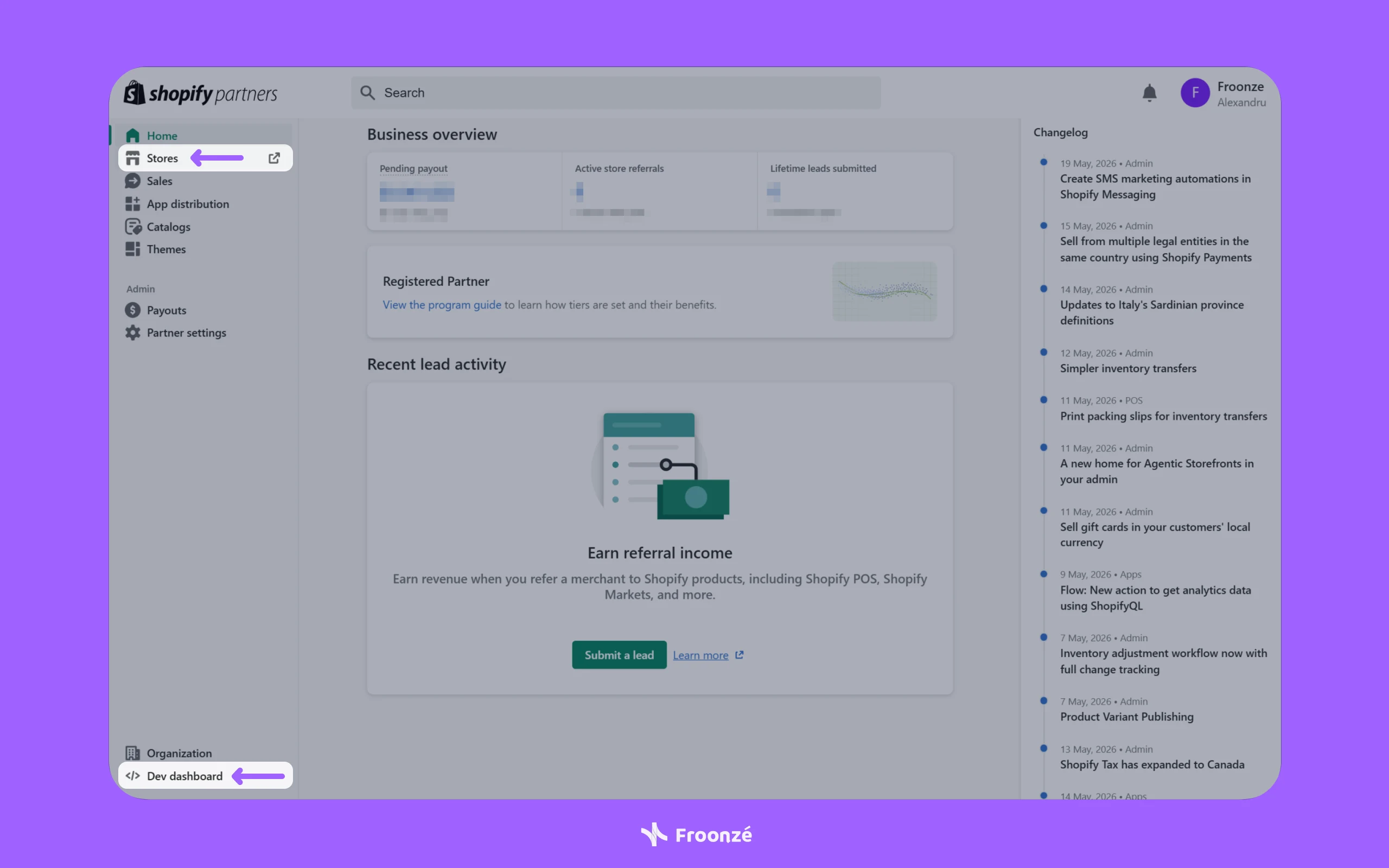
Once you set up your Shopify Partner account, you will be redirected to the Partner Dashboard from where you can access the Dev Dashboard.
- Click the Stores tab from the left-side panel menu to access the Dev Dashboard.
- Alternatively, click the Dev Dashboard button from the bottom left-side panel.
- Both options will open the Dev Dashboard from where you can create the Development Store.
Step 3: Create a Shopify development store
With the Dev Dashboard open, you can create your first development store.
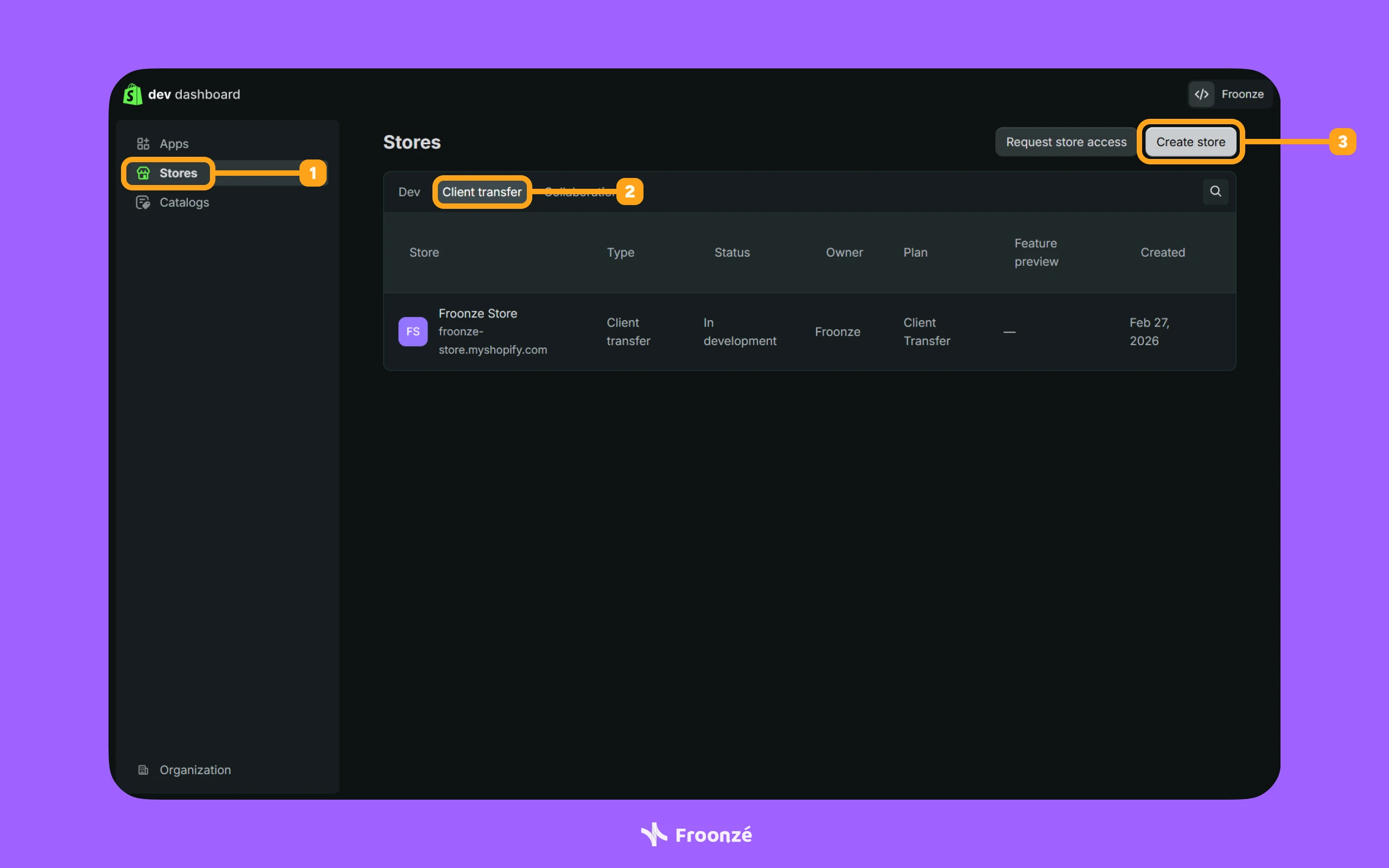
- Click the Stores tab from the left-side panel menu.
- Select the Client transfer option to check if you have existing stores you can use.
- Click the Create store button on the top right side of the page
- Choose the Client transfer option in the Create store page.
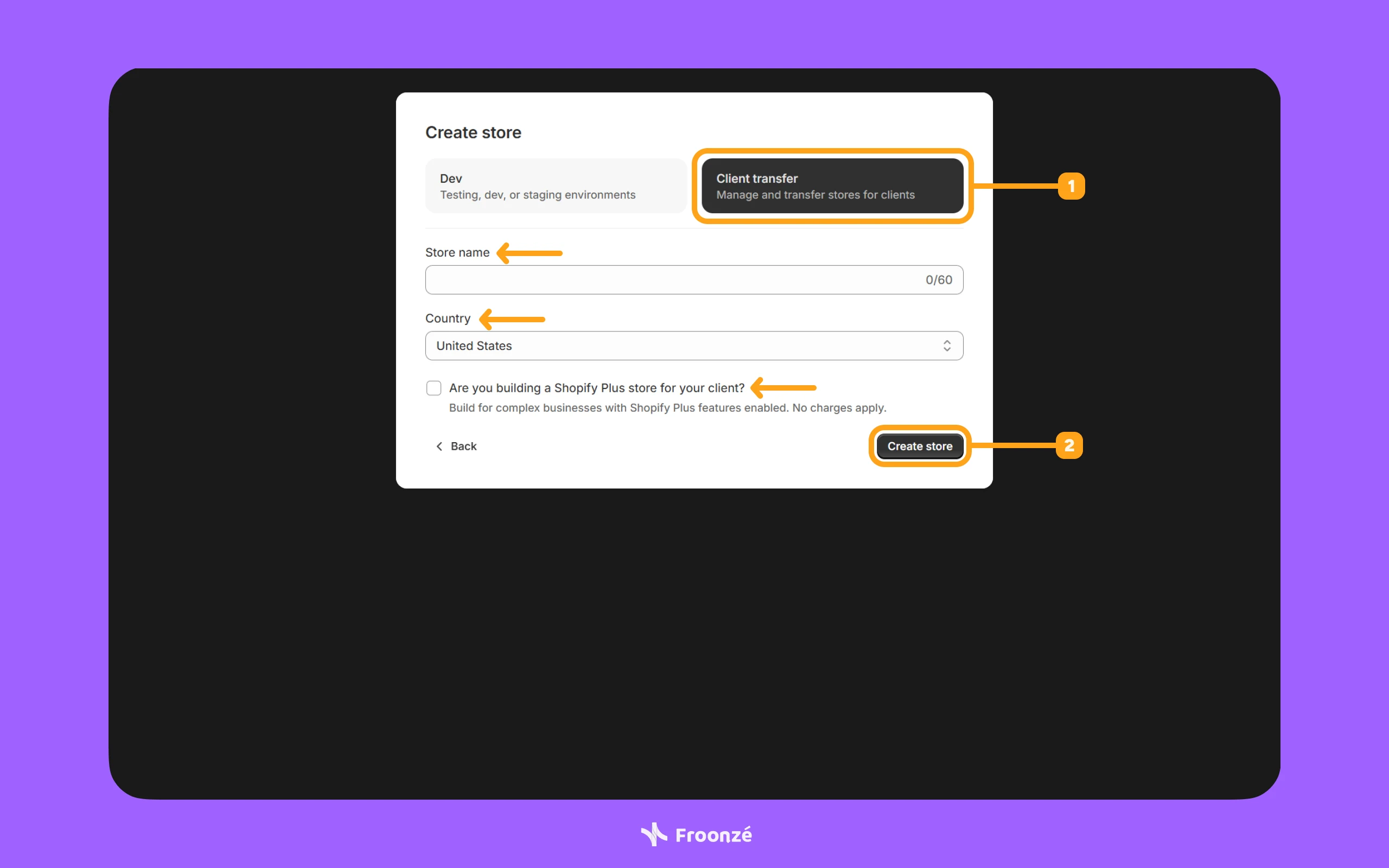
- Fill in the required information, including Store name, Country, and whether you’re interested in a Shopify Plus store.
- Once happy, hit the Create store.
Once the store is ready, you'll be automatically redirected to the newly created Shopify development store. That means you can start testing apps!
Step 4: Test apps for free in a Shopify development store
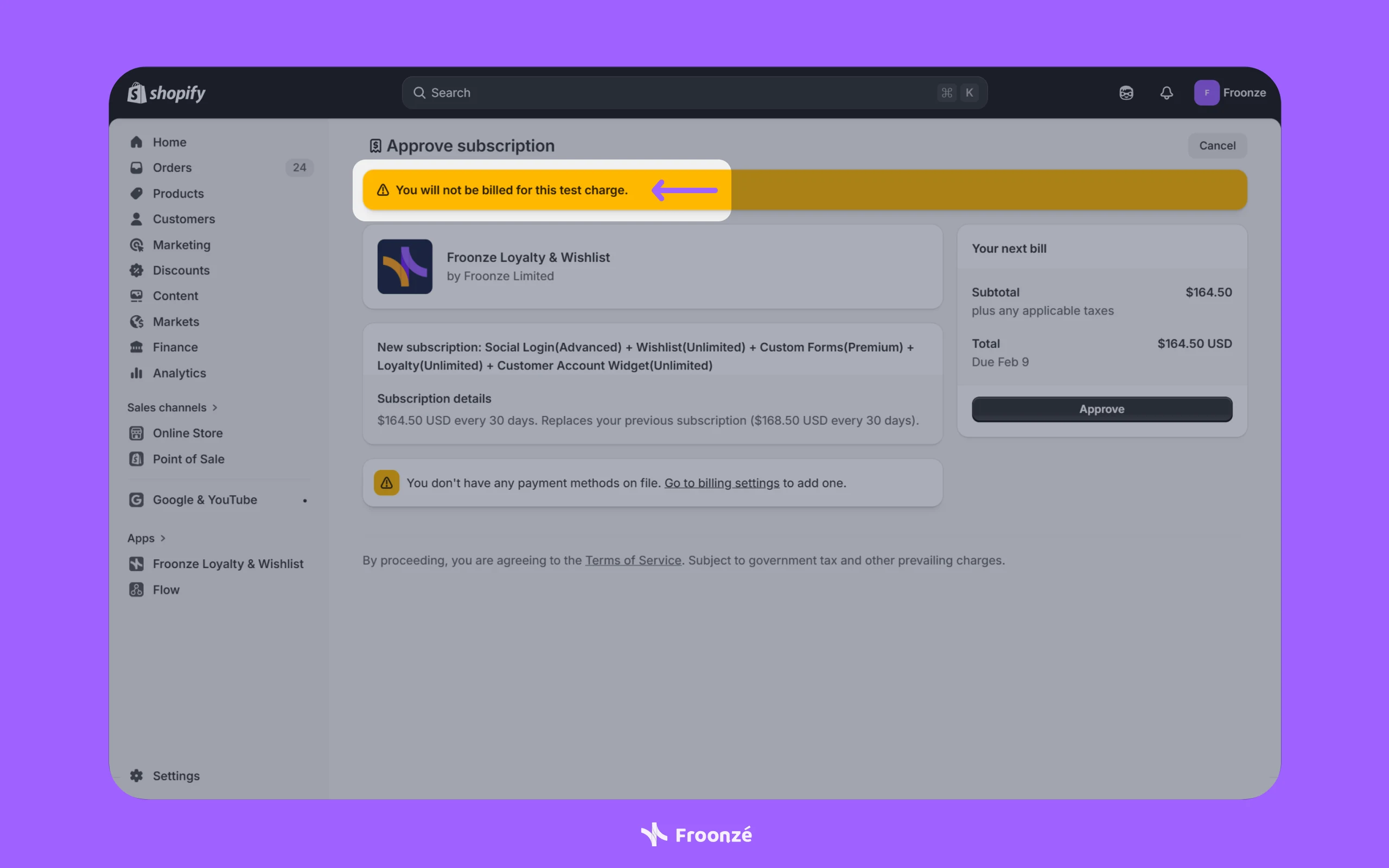
In case you weren’t automatically redirected to your store’s Shopify admin dashboard, you can:
- Access your development store from the Stores section in the Shopify Partner dashboard.
- Find your development store and press the Log in button. You’ll be redirected to the Shopify admin interface.
- Click the Apps link from the left-side panel to open the search function.
- Search for apps you want to install, complete their installation processes, and start testing them.
Step 5: Try Froonze in a Shopify development store
We’ll presume you’ve installed our app already. Given you’re free to try out every feature we offer, we can’t help but recommend that you do just that—subscribe to all of our plugins, and see how they can improve your store’s customer experience.
We offer several modules you can try out, such as:
- Loyalty plugin → boost loyalty by rewarding customers with points, native store credit, digital loyalty cards in POS, and more.
- Wishlist plugin → increase your revenue by allowing customers to save their favourite products and buy them again and again.
- Account plugin → transform the account feel by offering customers a cleaner and friendlier account page widget.
- Forms plugin → learn from your customers by encouraging them to submit their information for more personalised experiences
You can go here to learn more about our modules and features.
Looking beyond features? Our app boasts a perfect 5-star rating on the Shopify App Store, and we pride ourselves on:
- Selling at a price point that’s not a rip-off.
- Delivering support that’s like part of your team.
- Keeping the customer experience close to the customer.
So, how do you go about subscribing to our plugins? Just go to our app’s Subscription page and enable the plugins you wish to use. Don’t forget to click the Update subscription button and complete the subscription process.
Congratulations! You’ve just installed and subscribed to our app. What’s left is to try out our app’s features for as long as you need!
Considerations of Shopify development stores
Limitations of Shopify development stores
Keep in mind these limitations when creating a development store on Shopify:
- You can only install free and partner-approved apps.
- You can’t use real transactions to test orders, but you can use the Bogus Test Gateway or your payment provider’s test order mode (if offered).
- You can’t remove the Shopify store password page.
Benefits of Shopify development stores
On a sunnier note, setting up a Shopify development store allows you, among other things, to:
- Process an unlimited number of test orders.
- Create as many unique products as you want.
- Assign a custom domain.
At the end of the day, it’s all about experimenting, testing things out, seeing what’s possible, and what’s not. You can experience most of Shopify’s Advanced features, including testing your desired apps in a controlled environment. That’s how a Shopify development store can benefit you and your business!
Install Froonze on your Shopify development store
Next time you’re wondering whether it’s possible to extend that Shopify app trial just a little longer, know that it’s not only possible, but there is no trial period. You can test that app for as long as you wish without paying a dime!
Don’t just take our word for it. Do it yourself! Sign up for a Shopify Partner account, create a Shopify development store, install our Froonze app (and other partner-friendly apps), and start testing without worrying about trial periods or app costs piling up!